PastePlate-AI setup and daily walkthrough

↓ First launch

Set up once.
Log every day.

After install you spend ~3 minutes on profile setup for real AI coaching — every answer goes into your prompts and reports. After your AI coach the wizard asks: How do you talk to the coach? Clipboard is the default. In the app (API) is optional. You do not enter the key during setup.

The same welcome clip as in the app after language selection. Optional. Tap to play.

About 3 minutes for the profile wizard (19 steps), once. Not a quiz trick: everything you enter calibrates your coach for powerful models. Clipboard: three taps per day in the AI menu. API: in-app chat, report button, no pasting.

1

Choose language

Tap for more

Dutch, English and 12 more languages. Menus, prompts and reports follow your choice. Then optionally the welcome video, the same clip as above.

2

Set profile & goals

Tap for more

Wizard steps 1 to 13: gender, age, weight, height, main goal (cut, maintain or bulk), pace and focus, optional target weight and name. Then activity, smartwatch, longevity mode and water intake.

3

Set up your coach

Tap for more

Coach style: choose how your AI coach speaks, Standard, Motivator, Athlete or Vitality.

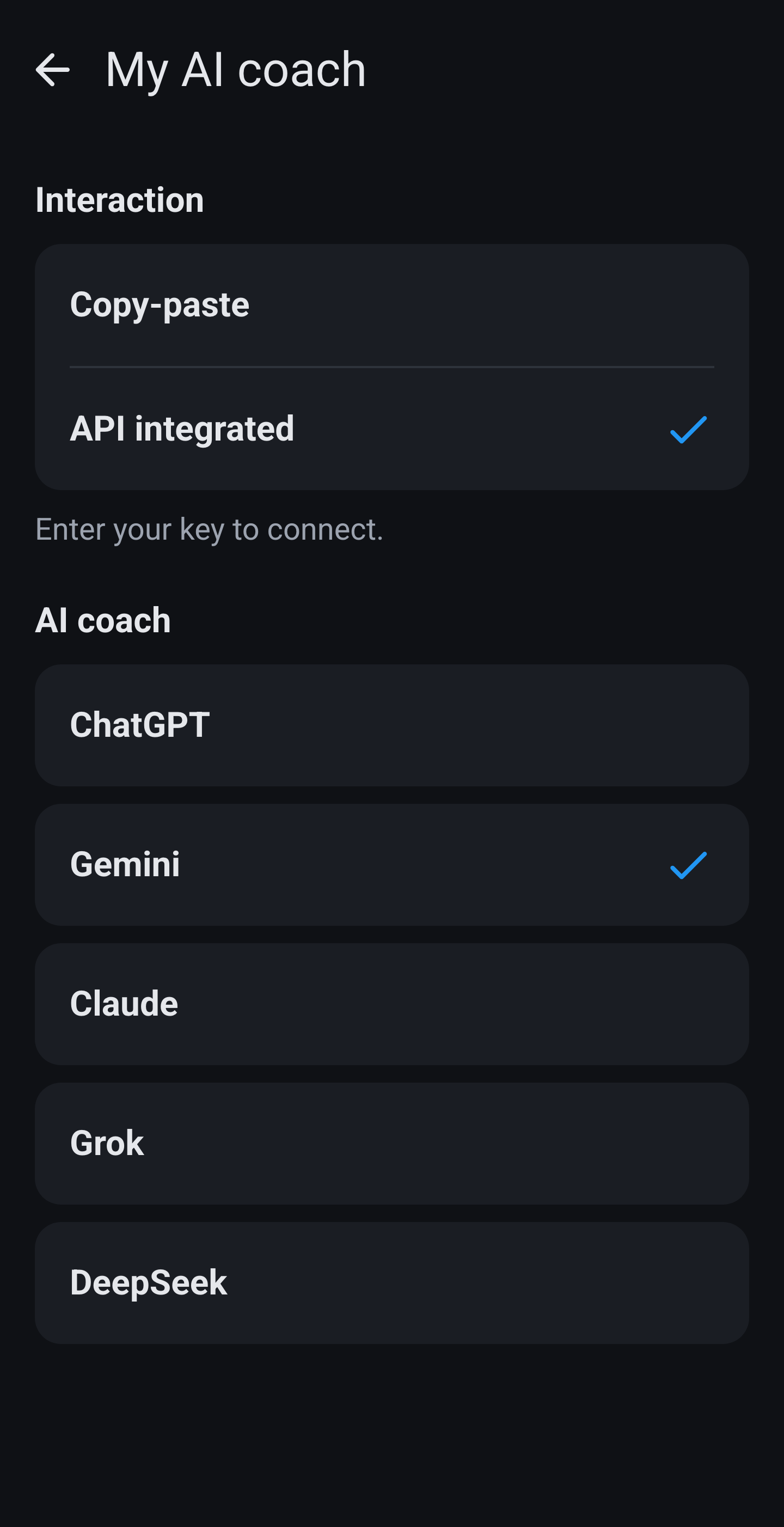
AI coach: pick ChatGPT, Claude, Gemini, Grok or DeepSeek. In API mode you choose ChatGPT, Claude or Gemini; copy and paste works with all five. With None only clipboard remains; in-app API stays off. Custom HTTPS later in Settings (API = endpoint + key, not the clipboard Open via field).

4

How do you talk to the coach?

Tap for more

Its own screen, one question. Clipboard (preselected): three steps in the AI menu, start → paste in your chat → fetch + import. The app does not call the coach. Open via only on this path, and only if you picked a coach (not None).

In the app (API): chat in PastePlate, meals go straight into the log, report button. Your key, straight to the provider you choose. Add the key later in Settings → My AI coach, before the first chat. The key is not in the backup. Open via is skipped. The summary names your choice: Conversation: Clipboard or In the app (API).

5

Learn the daily workflow

Tap for more

Optional, right after saving. Clipboard: full walkthrough with 13 screens or a short summary of the AI menu. Both further down. API: five screens, no 13 clipboard shots. Those are under In the app (API).

6

Start logging

Tap for more

Clipboard: every calendar day three steps in the AI menu. Log the whole day in one chat. API: start opens the in-app chat for that day; add the key in Settings first.

Tap a step for details

Macro targets, body fat goals, meal question toggles and the Measurements tab live in Settings & Measurements after setup. Nothing is locked in forever. Wearing a watch? Turn on Health sync from the menu and your weight, sleep, workouts and burn fill themselves in.

❖ After setup

How to log a day.
You pick how much detail.

Clipboard mode (default). Right after you save your profile, the app asks how you want to learn this: the full walkthrough with screenshots and examples, or only a short summary of the AI menu. Both are on this page. If you chose API, go to five steps in the app.

Short summary

Three steps in the AI menu

Three options belong to one calendar day. This is what the app shows when you pick Short summary only.

  1. Start your AI coach for today. At the start of the day. PastePlate opens the coach you chose, for example ChatGPT or Gemini, and you log the whole day in that one chat.
  2. Fetch data from AI chat. At the end of the day, often the next morning once you know your burn. Your coach writes a data block in the reply.
  3. Import data from AI. Paste that block back into PastePlate. Your logbook, reports and library are updated in one go.

The numbers match the red markers on the screenshot. Every step opens a short guide in the app that tells you what to paste and where.

Full walkthrough

All 13 screens of one calendar day

Every screen you pass through, from starting your coach in the morning to tapping Add all in the evening, with screenshots and a worked example of a logged meal.

Go to the 13 screens
Summary screen in the app: the three AI menu steps that belong to one calendar day.
Summary · one calendar day

Pick the full walkthrough in the app and you see this summary at the end as well. The in-app tutorial runs once during onboarding, so from then on this page is where you look it up.

❖ In the app (API)

Five steps.
No paste.

If you pick in the app at How do you talk to the coach?, this is the day. No second set of 13 images. The key is not in the wizard: add it later in Settings, before the first chat. The key is not in the backup.

API day

Same calendar day, different route

  1. Pick Gemini (or another). Mode: in the app.
  2. Paste your Gemini key. Tap Test connection. It stays on your phone, not in the backup.
  3. Tap Start. That day's chat opens in PastePlate.
  4. Type what you ate. That meal is in the logbook, including which plants count.
  5. Report is a button in that chat.

No short or extended choice. Five screens below. Not the 13 clipboard shots.

1

Pick Gemini (or another). Mode: in the app.

2

Paste your Gemini key. Tap Test connection. It stays on your phone, not in the backup.

3

Tap Start. That day's chat opens in PastePlate.

4

Type what you ate. That meal is in the logbook, including which plants count.

5

Report is a button in that chat.

⟳ Full walkthrough

All 13 screens
of one calendar day

Clipboard mode. The short version is right above, and also on the home page. Below is every screen you pass through, from starting your coach in the morning to importing the day in the evening. These 13 images are not the API path.

AI menu · Start

Tap the AI icon at the top centre 1 to open the AI menu. Choose Start your AI coach for today 2.

Paste guide · Start prompt

Short guide in PastePlate: after Got it, the start prompt is copied and your AI opens (app or browser). PastePlate cannot paste automatically. Optional: check don't show this again. Tap Got it.

AI chat · Welcome

Welcome message received. Your coach knows the calendar day and your goals. Log meals in this chat: talk, send photos or let the coach estimate.

Example · Label photo

Example of a logged meal with a label photo. Your coach calculates macros, day total and coach insights.

All day · Burn

You can chat with your AI coach all day and send photos. Using a smartwatch? With Health sync on, your burned calories arrive on their own. Without it, report them at the end of the day, often the next morning because your watch stops counting for that calendar day at midnight.

AI menu · Fetch

At the end of the day: tap the AI icon 1 to open the menu again. Choose Fetch data from AI chat 2. Same calendar day as this morning.

Paste guide · Fetch

Short guide: after Got it, the fetch instruction is copied and your AI opens. PastePlate cannot paste automatically. Optional: don't show this again. Tap Got it.

AI chat · Data block

After you paste the data request instruction into your AI chat, your coach creates a data block in the reply. Copy the entire block using the copy button at the block. The example shows a neutral chat; in your own app you see the coach you selected under My AI coach during setup.

AI menu · Import

Back in PastePlate-AI: tap the AI icon 1. Choose Import data from AI 2.

Import · Paste

Import AI data paste screen. Paste the data block into the field, or tap Paste from clipboard. Extra text around it does not matter.

Import · Validate

The data block is in the field. Tap Validate data block.

Import · Add

PastePlate shows found meals, smartwatch burn, reports and library items. Tap Add all.

Summary

Three options belong to one calendar day: 1 Start your AI coach for today, 2 Fetch data from AI chat, 3 Import data from AI.

❖ That is the whole loop

Clipboard: three taps. API: chat in the app.

Everything after this happens inside the app: circles, reports, measurements and the health platform on your phone. API: add the key in Settings before the first chat.